Know what to say. Right from your Mac.
Tera Chat drafts replies in your texting style inside your Tinder, Instagram, WhatsApp, iMessage and Telegram conversations. Start with one chat, read the draft, and make it yours before you send.
The Mac app is available now, free to download and use. Only optional AI upgrades are paid.
Sign in for 10 free AI replies a day and openers for 10 matches in total. No paid plan or separate AI account needed for that allowance.
Apple silicon (M1 or newer) · macOS 15 or later
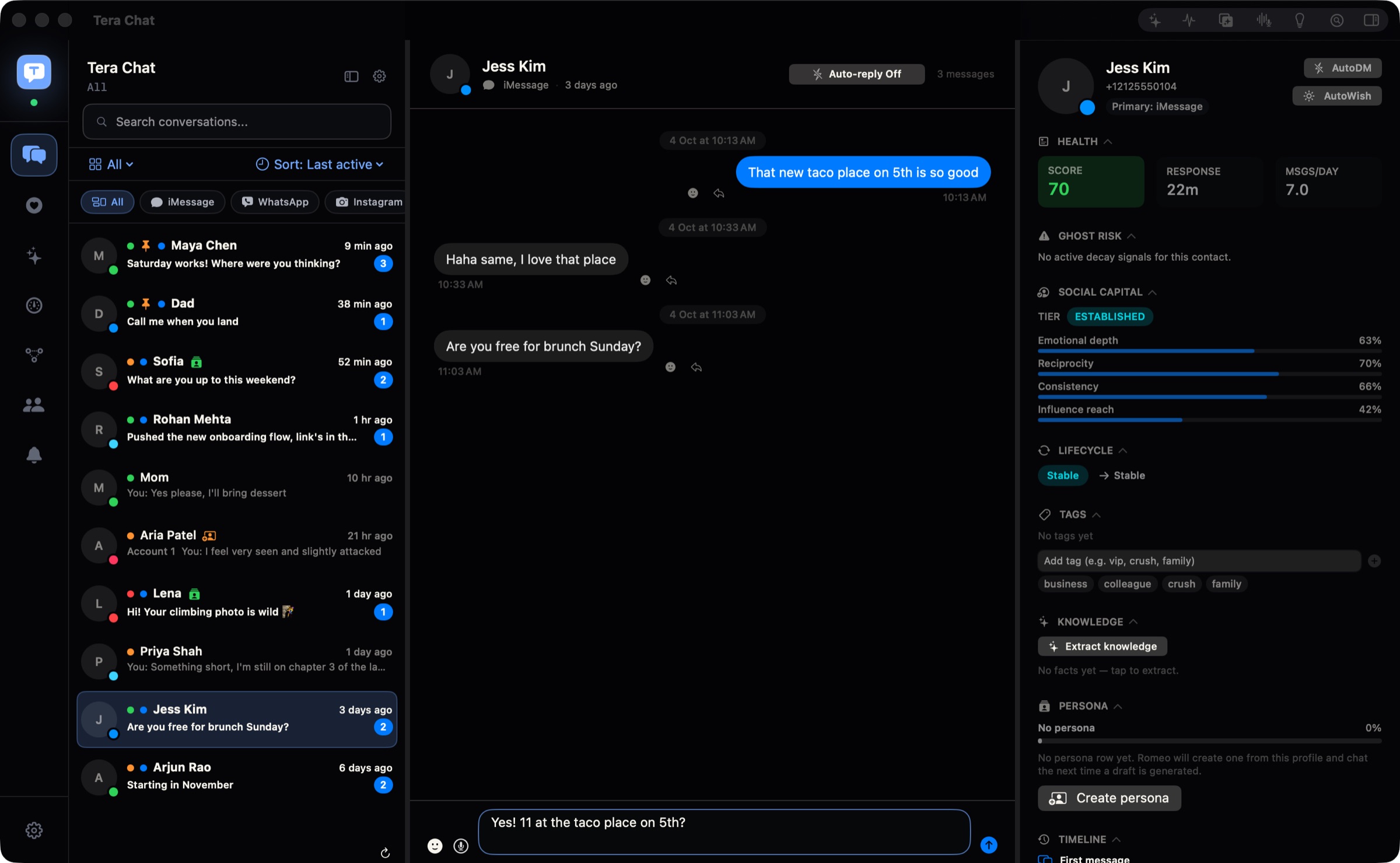
When is Tera Chat the right fit?
Use it when you want help replying from the conversation already on your Mac, especially when a Tinder match moves to Instagram or WhatsApp. You do not need to keep copying screenshots into a separate chatbot.
- A first message: get an opener based on a Tinder match's profile.
- A reply you're stuck on: draft from the conversation, then shorten or change it.
- Your usual voice: use the texting style Tera Chat learns from your sent messages.
If you only need to rewrite a sentence, your Mac's existing writing tools may be enough. If you need a phone app, this Mac download will not fit. Our Mac reply-assistant comparison explains the alternatives.
From download to your first reply
Open this on your Mac.
Tera Chat is a Mac app, so it can't install on a phone or PC. Send this link to your Mac and download it there.
Got our email? Open it on your Mac and click Get Tera Chat for Mac.
No email handy? On your Mac, type terachat.co/mac into the browser.
To get Tera Chat, choose Download Tera Chat below. Then the steps to install it appear at the top of this page.
Keep this page open while you set up. Connect one network first; the rest can wait.
Requires an Apple silicon Mac (M1 or newer) and macOS 15 or later. Check Apple menu → About This Mac if you are unsure.
- Install the downloaded app. Open Tera Chat.dmg from your browser’s Downloads, drag Tera Chat to Applications, then open it from Applications. The first time, your Mac asks whether to open an app downloaded from the Internet: click Open.
- Sign in inside Tera Chat. Use Apple, Google or email to get 10 free AI replies a day and openers for 10 matches total. A website account on its own does not install the app. You do not need a paid plan, a separate ChatGPT account or an AI key for this allowance.
- Connect one chat account. On the “Where do you meet people?” setup screen, choose an account you already use. Open its steps below and wait until the connection is verified. You can add other networks later.
- Try one reply. Choose Open my chats to finish setup, then open a conversation that already has messages. Leave the message box empty with no attachment and choose Generate first reply. Read the draft, change anything that does not sound like you, and send only when you are happy with it. You can leave the automation switches off.
Setup finishes in Chats for every network selection. After your first usable draft, the reply button becomes a sparkle icon. Full setup guide and troubleshooting.
Choose the chat you want to try first
Sign in to Tera Chat for the free AI allowance, then open your network below. You only need one connected account to start.
Telegram: sign in, import chats, draft a reply
Have Chrome, Brave or Edge installed. In setup, choose Connect Telegram. Sign in to Telegram in the separate window, then return and choose Done, I’m signed in. Wait until the account shows as connected.
Finish setup, choose Chats in the sidebar and open a Telegram conversation. With the message box empty and no attachment, choose Generate first reply (the sparkle after your first draft or in older versions). Read and edit the draft before sending. Secret Chats are not imported; send attachments and make calls in Telegram's own app. Full Telegram connection steps.
Instagram: connect your account and try a DM reply
Choose Connect Instagram in setup and sign in on Instagram's login page. Complete any security check Instagram asks for and wait for the account to show as connected. For another account later, use Settings → Messaging → Instagram accounts → Connect.
Finish setup and open an Instagram conversation that already has messages. Leave the message box empty with no attachment, choose Generate first reply and review the draft. After your first draft or in older versions, use the sparkle. Replies from Tera Chat are text only; keep Instagram for attachments, calls and alerts. Full Instagram connection steps.
WhatsApp: scan the code and open one conversation
Choose Connect WhatsApp in setup. On your phone, open WhatsApp's Linked devices → Link a device and scan the code on your Mac. Wait for pairing and the initial chat import.
Finish setup, choose Chats and open a WhatsApp conversation. Clear the message box, remove any attachment and choose Generate first reply to try a draft (the sparkle after your first draft or in older versions). Read and edit it before sending. Use WhatsApp itself for attachments, calls and alerts. Full WhatsApp connection steps.
iMessage: allow access, then find your chat
First make sure your conversations appear in Apple's Messages app on this Mac. In Tera Chat setup, choose Allow iMessage. In System Settings → Privacy & Security → Full Disk Access, turn on Tera Chat, return and choose Check again. Quit and reopen Tera Chat if history still does not appear.
Finish setup, choose Chats and open an iMessage conversation. With an empty message box and no attachment, choose Generate first reply, then review the draft. After your first draft or in older versions, use the sparkle. When you first choose to send, macOS may ask to let Tera Chat control Messages. Full iMessage permissions guide.
Tinder: connect, open a conversation and review a reply
Read the Tinder terms guide before connecting. Have Chrome, Brave or Edge installed. Choose Connect Tinder in setup, sign in in the separate window, return and choose Done, I’m signed in. Wait for the connection to be verified.
Finish setup and open a Tinder conversation with existing messages in Dating. Leave the message box empty with no attachment and choose Generate first reply (the sparkle after your first draft or in older versions). Read and edit the draft before sending. You can leave all automation switches off. Full Tinder connection steps.
If something’s off
- No conversations: finish signing in to the network first. A sign-in window opening is not the same as a connected account. Wait for chats to import; if needed, use the network's Sync History control. Connection steps for each network.
- No free replies: check that you are signed in to Tera Chat. Replies reset every day; the 10-match opener allowance is a total, not a daily allowance.
- The reply button is missing: open a conversation, clear the message box and remove any attachment. Look for Generate first reply, or the sparkle if you have already generated a draft. Wait for any request in progress to finish.
- The draft does not sound right: edit it before sending. The writing-style guide explains how to refresh your style.
Still stuck? Email teralabsx@gmail.com with your app version, macOS version, the network and the error shown. Please leave out private messages and sign-in codes.
What is free, and what happens next?
The Mac app and inbox are free. Signing in adds 10 built-in AI replies a day and openers for 10 matches in total. Try a real conversation before deciding whether you need more.
Optional AI Plus starts at $9.99 per month, tax included (plus sales tax in the US and Canada). You can also connect your own ChatGPT account through Codex, subject to its usage limits. Claude and Grok API keys cover other AI features, but not Tinder or Instagram drafts. Compare the free allowance and plans.
Your conversations and your control
Your inbox is stored on your Mac. AI features send the conversation text they work on to the selected provider; built-in Tera Chat AI passes it through our server to Anthropic without retaining that text. Read the privacy details.
Questions before you download
Which Macs can use Tera Chat?
Tera Chat requires an Apple silicon Mac (M1 or newer) running macOS 15 Sequoia or later. Check Apple menu → About This Mac for the chip and macOS version. Intel Macs are not supported.
Can I try an AI reply without paying or connecting ChatGPT?
Yes. Sign in to Tera Chat for 10 free built-in AI replies a day and openers for 10 matches in total per account. No separate AI account or paid plan is required for that allowance. The opener allowance does not reset daily.
The installer downloaded. What do I do now?
Open Tera Chat.dmg from your browser’s Downloads, drag Tera Chat to Applications, and open Tera Chat from Applications. The first time, your Mac asks whether to open an app downloaded from the Internet: click Open. Sign in inside the app, connect one chat account, choose Open my chats, and open a conversation with existing messages. Leave the message box empty with no attachment and choose Generate first reply. After your first draft, or in older versions, use the sparkle reply button.
Do I have to connect all my messaging apps?
No. Start with one account and one conversation. Add other networks later. Full Disk Access is needed only if you want iMessage; it is not required to start with Tinder, Instagram, WhatsApp or Telegram.
Will my first draft send automatically?
The reply button puts a draft in the message box. Read it, edit it and choose whether to send. You do not need to turn on Autopilot, Auto-send or AutoWish to try a reply.
Is Tera Chat available for iPhone, Windows or Android?
This download is the native Mac app. It cannot be installed on iPhone, iPad, Windows or Android. If you are reading on another device and have a compatible Mac, the download button can email you the Mac link.