Getting started with Tera Chat: set up your Mac inbox step by step
Tera Chat setup in five steps: install it, sign in or skip, connect iMessage, WhatsApp, Telegram, Instagram and Tinder, learn the inbox, then turn on AI.
The short answer
- Tera Chat needs a Mac with Apple silicon (M1 or newer) running macOS 15 Sequoia or later; the app and the unified inbox are free with no time limit.
- Signing in is optional: Continue with Apple, Google or email, or Continue without an account. An account keeps your AI plan and some settings, never your messages.
- Your chats sync from the first launch, as soon as each app is connected, and nothing is sent unless you send it: Autopilot stays off until you turn it on.
- iMessage needs Full Disk Access, WhatsApp pairs by QR code, Instagram signs in on Instagram's own page, and Telegram and Tinder sign in through a private browser window that needs Chrome, Brave or Edge.
- AI is optional: connect your ChatGPT account (through Codex) or a Claude or Grok API key at no charge from Tera Chat, or pick a Tera Chat AI plan with AI built in, from $9.99 a month.
To set up Tera Chat, download it from terachat.co/download on a Mac with Apple silicon and macOS 15 Sequoia or later, drag it to Applications and open it. Sign in with Apple, Google or email (or continue without an account), then connect your apps: iMessage needs Full Disk Access, WhatsApp pairs with a QR code, and Instagram, Telegram and Tinder sign in on their own login pages. Your chats start syncing as each app is connected. The app and inbox are free; AI is optional.
This guide walks through each step in order, tells you what you’ll see on screen, and ends with fixes for the problems people hit most often. Each network has its own detailed guide, linked as you go.
What do you need before you start?
You need a recent Mac, a few minutes, and your phone nearby for WhatsApp. Here’s the full list.
| You need | Why | How to check |
|---|---|---|
| A Mac with Apple silicon (M1 or newer) | Tera Chat is built for Apple silicon | Apple menu → About This Mac: Apple silicon Macs show a Chip line (Apple) |
| macOS 15 Sequoia or later | The minimum version Tera Chat runs on | Same About This Mac window |
| Google Chrome, Brave or Microsoft Edge | Only for signing in to Telegram and Tinder | Look in your Applications folder |
| Your phone with WhatsApp on it | To scan the pairing QR code | |
| Messages set up on this Mac | Only for iMessage | Open Messages and check you’re signed in |
Tera Chat is Mac-only: there’s no Windows, iPhone, iPad, Android or web version. It connects iMessage, WhatsApp, Telegram, Instagram (DMs) and Tinder, with Hinge in beta (read-only) and Bumble coming soon. It doesn’t support Signal, Facebook Messenger, Slack, Discord, LinkedIn, email, SMS from an Android phone or RCS.
Step 1: Download and install Tera Chat
Tera Chat comes as a signed, notarized disk image from its own website.
- Go to terachat.co/download and download the DMG file.
- Open the downloaded file. A window called Tera Chat appears.
- Drag Tera Chat onto the Applications shortcut in that window.
- Open Tera Chat from your Applications folder. If macOS asks whether you’re sure you want to open an app downloaded from the internet, click Open.
You only do this once. Tera Chat checks for updates on its own, downloads them in the background and installs them when you’re not in the middle of something (or when you quit). Every update is signed. To check by hand, choose Check for Updates… in the Tera Chat menu.
Step 2: Sign in, or skip it
The main window opens on Chats, with a rail down the left side: Chats, Dating, Influence, Operations, Graph, Contacts and Alerts, plus Upgrade, Sign in and Settings at the bottom. A Tera Chat icon also appears in your menu bar. A couple of seconds later, a welcome screen titled Sign in or create an account appears.
| Option | What happens |
|---|---|
| Continue with Apple | Sign in with your Apple Account in a sign-in sheet |
| Continue with Google | Sign in with your Google account |
| Continue with email | Tera Chat emails you a 6-digit code (valid for 10 minutes). Type it into the six boxes; there’s no password |
| Continue without an account | Closes the screen. The app works the same. Pressing Esc does this too |
An account keeps your Tera Chat AI plan and some app settings, never your messages, contacts or chat accounts. If you skip it now, click Sign in in the rail any time later.
Step 3: Connect your chat apps
Each network connects in its own way, because each one works differently. You can connect one, some or all of them, and each one starts syncing as soon as it’s connected: there’s nothing else to switch on. Tera Chat doesn’t send anything on its own. You send each message yourself, and Autopilot is off until you turn it on.
| App | Where to connect it | What you do | What works in Tera Chat |
|---|---|---|---|
| iMessage | macOS System Settings → Privacy & Security → Full Disk Access | Turn on Tera Chat, then quit and reopen it. macOS asks once for permission to control Messages when you first send | Read and send; send photos and files |
| Settings → Messaging → WhatsApp → Pair device | Scan the QR code with WhatsApp on your phone (Linked devices → Link a device) | Real-time sync with media; sending is text only | |
| Settings → Messaging → Instagram accounts → Connect | Sign in on Instagram’s own login page inside Tera Chat. Up to three accounts | Read DMs; send text | |
| Telegram | Settings → Messaging → Telegram → Sign in | Sign in to Telegram in the private browser window that opens, then click Sync History | Read; send text |
| Tinder | Dating → Tinder → Protected Browser | Confirm with Touch ID or your Mac password, sign in at tinder.com in the window that opens, then click Sync History | Read, send text, see new matches |
| Hinge | Beta, read-only | One-time setup that downloads about 2 GB | Read only |
| Bumble | Coming soon |
The step-by-step versions, with what you’ll see and what to do when something doesn’t work, are in two guides: how to add iMessage to Tera Chat and how to connect WhatsApp, Telegram, Instagram and Tinder. If you’re wondering why iMessage needs such a broad permission, Full Disk Access on Mac, explained covers it in plain English.
One thing to know before connecting Tinder: Tinder’s and Hinge’s terms restrict third-party apps that connect to your account, AI included, and Tera Chat is that kind of tool. Read what Tinder’s and Hinge’s rules say and how Tera Chat works with dating apps first.
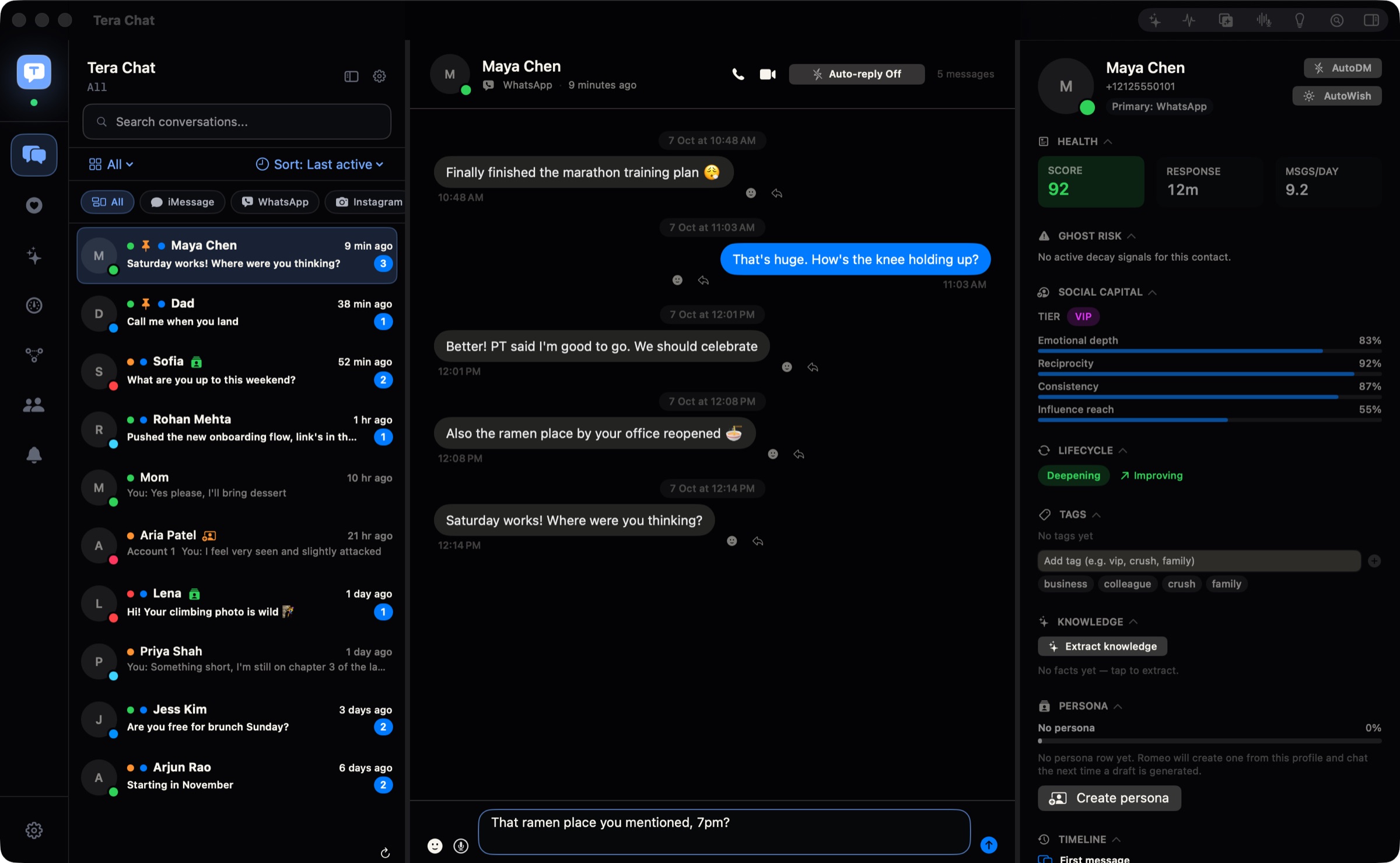
Step 4: Find your way around the inbox
Every thread from every connected app appears in one list, newest first. A few controls do most of the work.
- Filter by app: the chips at the top of the list (iMessage, WhatsApp, Instagram, Telegram, Tinder) show one network at a time.
- Views: switch between Inbox, Needs Reply, Unread, Pinned and Archived. Sort by last active, name or health score.
- Tidy up: right-click a conversation to pin, archive, hide, mute or lock it.
- Search: the Search conversations… box finds conversations and people. Messages are also indexed in macOS Spotlight, so you can find a message from anywhere on your Mac.
- From anywhere: press ⌘⇧M to bring Tera Chat forward from any app (change the shortcut in Settings → General), or click the menu bar icon.
- Reply: type in the box at the bottom. Return sends, Shift-Return adds a new line.
| Shortcut | What it does |
|---|---|
| ⇧⌘S | Summarize the open conversation |
| ⌥⌘D | Open the Draft reply sheet (in iMessage, WhatsApp and Telegram chats it drafts with Codex / ChatGPT or a Grok key; the sparkle button in the reply box works with any AI) |
| ⌥⌘V | Voice draft |
| ⌥⌘I | Show or hide contact details |
| ⌥⌘A | Alert Center |
| ⌘, | Settings |
A few limits are worth knowing on day one. Photos and files can only be sent on iMessage; on WhatsApp, Instagram, Telegram and Tinder, Tera Chat sends text only. Emoji reactions and quoted replies you add in Tera Chat stay in Tera Chat and aren’t sent to the other app. WhatsApp and Instagram calls open their own websites. And Tera Chat doesn’t show a notification for every new message, so keep notifications on in your other apps if you rely on them.
Step 5 (optional): Turn on AI
Until AI is set up, a gold Turn on AI in Tera Chat banner sits above your chats. You have two ways to turn it on, and you can change your mind later.
- Bring your own AI (free from Tera Chat): open Settings (⌘,) → API Keys. Turn on Codex / ChatGPT to use your ChatGPT account through OpenAI’s Codex, or paste your own Claude (Anthropic) or Grok (xAI) API key. You pay your provider, and a daily spend cap ($5 by default) limits what an API key can spend. The setup for each is in use your ChatGPT account or a Claude or Grok API key with Tera Chat.
- Use a Tera Chat AI plan (nothing to set up): click See plans in the banner or Upgrade in the rail. AI Plus is $9.99 a month, AI Pro $19.99 and AI Max $49.99 (US dollars, plus tax where applicable), and you can cancel anytime. Tera Chat AI plans explained compares them.
Once AI is on, open any chat and click the sparkle button in the empty reply box to get a draft in your texting style. You edit it and send it yourself. Summarize catches you up on a long thread, and Ask about this chat answers questions like “what restaurant did she mention?”
Worth knowing: once AI is set up, some features also run in the background, such as a summary after every 10 new messages, a daily check for life events and the Sunday digest. AI sees the conversations it works on. You can pause background processing in Settings → Pipelines. Is Tera Chat safe? explains where your messages go in each case.
If something goes wrong
| What you see | What to do |
|---|---|
| An orange banner says Tera Chat is paused (before 1.1.6 it said Safe preview) | Click Resume… in the banner and confirm. Versions before 1.1.6 started this way; from 1.1.6 a new install syncs straight away |
| A notice says iMessage access paused | Click Open System Settings, turn on Tera Chat under Full Disk Access, then quit and reopen Tera Chat. It checks access once per launch |
| A notice says chat.db not found | Open the Messages app on this Mac and sign in to iMessage, then reopen Tera Chat |
| iMessage chats show phone numbers instead of names | Tera Chat doesn’t have access to your Contacts yet. See the iMessage guide for how to allow it |
| The Telegram or Tinder sign-in window doesn’t open | Install Google Chrome, Brave or Microsoft Edge, then try again |
| WhatsApp stopped updating | Open WhatsApp on your phone (WhatsApp disconnects linked devices if the phone isn’t used for 14 days, per WhatsApp’s help center), then click Pair device (it reads Reconnect while connected) in Settings → Messaging → WhatsApp. If a QR code appears, scan it again |
| A message you sent on iMessage failed | Allow Tera Chat to control Messages in System Settings → Privacy & Security → Automation (Apple) |
If you’re still stuck, email hello@terachat.co with what you see on screen.
What to do next
Once your apps are connected, these guides cover the rest of Tera Chat:
- How to add iMessage to Tera Chat and how to connect WhatsApp, Telegram, Instagram and Tinder, step by step.
- Use your ChatGPT account or a Claude or Grok API key, or compare the Tera Chat AI plans.
- Relationship insights explained: the health score, missed cues, fading chats and life events.
- Tera Chat Autopilot: replies ready to send for the chats you choose, and the safety controls around it.
- How Tera Chat works with Tinder and Hinge, including the risks.
- Is Tera Chat safe?: where your messages are stored and what each permission allows.
Frequently asked questions
Is Tera Chat free?
Yes. The app and the unified inbox are free with no time limit. AI costs nothing extra from Tera Chat if you use your ChatGPT account (through Codex) or a Claude or Grok API key; the built-in Tera Chat AI plans start at $9.99 a month.
Do I need a Tera Chat account?
No. Click Continue without an account on the welcome screen and the app works the same. An account only keeps your Tera Chat AI plan and some app settings, never your messages, contacts or chat accounts.
Why isn't anything showing up after I install Tera Chat?
Each app has to be connected first: iMessage needs Full Disk Access (then quit and reopen Tera Chat), WhatsApp needs its QR code scanned, and Telegram and Tinder need Sync History after you sign in. On a version before 1.1.6, also click Resume… in the orange Safe preview banner.
Does Tera Chat work on an Intel Mac or on iPhone?
No. Tera Chat needs a Mac with Apple silicon (M1 or newer) and macOS 15 Sequoia or later. There's no iPhone, iPad, Windows or Android version.
Will Tera Chat notify me about every new message?
No. Tera Chat's notifications are for things like fading chats, life events, the weekly digest and reminders. Keep notifications on in WhatsApp, Messages and your other apps if you want an alert for every message.
Published . How we write and check our guides. Spotted something out of date? Email hello@terachat.co.