Mac Messages keyboard shortcuts, plus WhatsApp, Telegram and Tera Chat
Every Mac Messages keyboard shortcut from Apple's list, the macOS shortcuts that help with messaging, how to find WhatsApp and Telegram's, and Tera Chat's.
The short answer
- The Messages shortcuts worth learning first are Command-N (new message), Command-F (search), Command-R (reply), Command-T then 1 to 6 (Tapback), Command-E (edit a sent message) and Control-Tab (next conversation).
- Apple publishes the full Messages list in its Messages User Guide; it covers about 40 shortcuts, from filtering unread conversations (Control-Command-4) to marking a conversation unread (Shift-Command-U).
- We couldn't find an official shortcut list for WhatsApp's or Telegram's Mac apps, so check each app's menu bar, where macOS shows every menu command's shortcut beside it.
- You can give any menu command in any Mac app your own shortcut in System Settings → Keyboard → Keyboard Shortcuts → App Shortcuts.
The Mac Messages keyboard shortcuts worth learning first are ⌘N to start a new message, ⌘F to search all conversations, ⌘R to reply to the last message, ⌘T then 1 to 6 for a Tapback, ⌘E to edit a message you sent, and ⌃Tab to jump to the next conversation. All of them come from Apple’s official list. We couldn’t find an official shortcut list for WhatsApp’s or Telegram’s Mac apps, so for those, the reliable source is the app’s own menus.
This cheat sheet has Apple’s full Messages list (checked on 20 October 2026), the macOS shortcuts that make messaging faster, how to find and create shortcuts for any chat app, and Tera Chat’s shortcuts.
Which Messages shortcuts should you learn first?
These ten cover most of what you do in Messages every day, from Apple’s Messages keyboard shortcuts:
| Shortcut | What it does |
|---|---|
| ⌘N | Start a new message |
| ⌘F | Search all conversations |
| ⌘R | Reply to the last incoming (or selected) message |
| ⌘T, then 1–6 | Add a Tapback to the last (or selected) message |
| ⌘E | Edit a sent message |
| ⌃Tab / ⌃⇧Tab | Next / previous conversation |
| ⌘1 to ⌘9 | Go to a pinned conversation |
| ⌃⌘4 | Show only conversations with unread messages |
| ⇧⌘U | Mark a conversation as unread or read |
| ⌥Return or ⇧Return | New line without sending |
Two habits make these stick: use ⇧⌘U to mark anything you can’t answer right now as unread, then ⌃⌘4 later to see only what’s still waiting.
What are all the Mac Messages keyboard shortcuts?
Here’s Apple’s complete list, grouped the way Apple groups it.
The Messages app and its window
| Shortcut | What it does |
|---|---|
| ⌘, | Open Messages settings |
| ⌘N | Start a new message |
| ⌘0 | Open the Messages window |
| ⌘W | Close the Messages window |
| ⌘P | Print the conversation |
| ⌃⌘1 | Show all conversations |
| ⌃⌘2 | Show conversations from known senders |
| ⌃⌘3 | Show conversations from unknown senders |
| ⌃⌘4 | Show conversations with unread messages |
| ⌃⌘5 | Show recently deleted messages or conversations |
| ⌘F | Search all conversations |
| ⌘1 to ⌘9 | Go to a pinned conversation |
| ⌥⌘1 | Go to the first unpinned conversation |
| ⌃⌘Space | Open the Emoji & Symbols window |
| ⌘M | Minimize the window |
| ⌃⌘F | Enter full-screen view |
| ⌘H / ⌥⌘H | Hide Messages / hide everything except Messages |
| ⌘Q | Quit Messages |
Inside a conversation
| Shortcut | What it does |
|---|---|
| Return | Send a message |
| ⌥Return or ⇧Return | Insert a line break or new paragraph |
| ⌘E | Edit a sent message (time limits) |
| ⌘C / ⌘V | Copy the selected text / paste copied text |
| ⌘R | Reply to the last incoming (or selected) message |
| ⌘T, then 1–6 | Add a Tapback |
| ⌃Tab | Select the next conversation |
| ⌃⇧Tab | Select the previous conversation |
| ⌥⌘I | Open the conversation’s Info view |
| ⌥⌘M | Hide or unhide alerts for a conversation |
| ⇧⌘U | Mark a conversation as unread or read |
| ⌥⌘B | Open the contact card for the person you’re messaging |
| ⌥⌘E | Send an email to a selected person in the conversation |
| ⇧⌘E | Show video effects (during a video call in Messages) |
| ⌘+ / ⌘- | Make the text bigger / smaller |
| ⇧⌘: | Open the Spelling and Grammar window |
| ⌘; | Check the message field for spelling and grammar |
| Space | Show the selected image in Quick Look |
| Delete | Delete a single selected message |
⌥⌘M is worth knowing for busy group chats: it mutes the conversation without leaving it. Apple notes that senders see that you have notifications silenced, and that if you turn on Notify me when my name is mentioned (Messages → Settings → General), you’re still notified when someone mentions you (Apple).
Which macOS shortcuts help with messaging?
A handful of system-wide shortcuts from Apple’s Mac keyboard shortcuts page save more time than any single app’s list:
| Shortcut | What it does | Why it helps |
|---|---|---|
| ⌘Space | Open Spotlight | Find a contact, a file or an app without the mouse |
| ⌘Tab | Switch to the next most recently used app | Jump between Messages, WhatsApp and Telegram |
| ⌘` | Switch between windows of the same app | Move between two chat windows |
| FnE or ⌃⌘Space | Show emoji and symbols | Works in most chat apps’ text fields |
| FnD | Start or stop dictation | Talk instead of type; you can set a different shortcut in Keyboard settings (Apple) |
| ⌥← / ⌥→ | Move the cursor word by word | Fix a typo mid-message |
| ⌥Delete | Delete the word to the left | Faster than holding Delete |
| ⌘← / ⌘→ | Jump to the start or end of the line | Edit the beginning of a long message |
| ⌘Z / ⇧⌘Z | Undo / redo | Bring back text you deleted by accident |
Spotlight can also start a message: open it with ⌘Space, type “Send Message” and choose the action, which composes a new message. Pressing ⌘3 after opening Spotlight narrows the results to actions (Apple).
What are the keyboard shortcuts for WhatsApp and Telegram on Mac?
We couldn’t find an official list for either app’s Mac version on WhatsApp’s or Telegram’s own sites as of October 2026. The lists you’ll find on other sites disagree with each other: some mix shortcuts for WhatsApp Web with those for the Mac app, and Telegram has two different Mac apps (Telegram for macOS and Telegram Desktop).
The reliable way to find the shortcuts for the version you have:
- Open WhatsApp or Telegram.
- Click each menu in the menu bar at the top of the screen (the app’s name, File, Edit, View and so on).
- Read the key combination shown to the right of each command. If a command has no combination, it has no shortcut.
The macOS text shortcuts in the table above (word jumps, ⌥Delete, undo, emoji) generally work in WhatsApp’s and Telegram’s message fields too, because they’re standard macOS text shortcuts rather than part of one app.
How do you make your own shortcut for any chat app?
macOS lets you add a shortcut to any menu command in any app. The steps, from Apple’s guide:
- Open System Settings → Keyboard, then click Keyboard Shortcuts.
- Select App Shortcuts and click Add.
- Choose the app (or All Applications) from the Application menu.
- In Menu title, type the command exactly as it appears in the app’s menu, including any “…”.
- Click the Keyboard shortcut field, press the keys you want, then click Done.
Two caveats from Apple: it only works for commands that exist in a menu, and if your combination is already used by another command, the new shortcut won’t work. Some apps don’t allow custom shortcuts at all.
What are Tera Chat’s keyboard shortcuts?
Tera Chat is our Mac app: it brings iMessage, WhatsApp, Telegram, Instagram and Tinder into one inbox, so one set of shortcuts works across all of them.
| Shortcut | What it does |
|---|---|
| ⌘⇧M | Bring Tera Chat forward from any app (change it in Settings → General) |
| ⇧⌘S | Summarize the conversation |
| ⌥⌘D | Draft a reply |
| ⌥⌘V | Voice draft |
| ⌥⌘I | Show contact details |
| ⌥⌘A | Open the Alert Center |
| ⌘, | Settings |
| Return | Send |
| ⇧Return | New line |
A few notes on what these do:
- ⌘⇧M works from anywhere, so you can answer a WhatsApp or Telegram message without hunting for the window. If it clashes with a shortcut you use in another app, change it in Settings → General.
- ⌥⌘D drafts a reply in your own texting style, which you edit and send yourself. ⇧⌘S summarizes a thread you’ve fallen behind on. Both need AI set up: your ChatGPT account (through Codex) or a Claude or Grok API key, or a Tera Chat AI plan.
- ⌥⌘V turns a recording into a reply: you pick an audio file of yourself talking it through, Tera Chat transcribes it on your Mac and turns it into a clean draft.
- ⌥⌘I matches Messages, where the same keys open a conversation’s Info view.
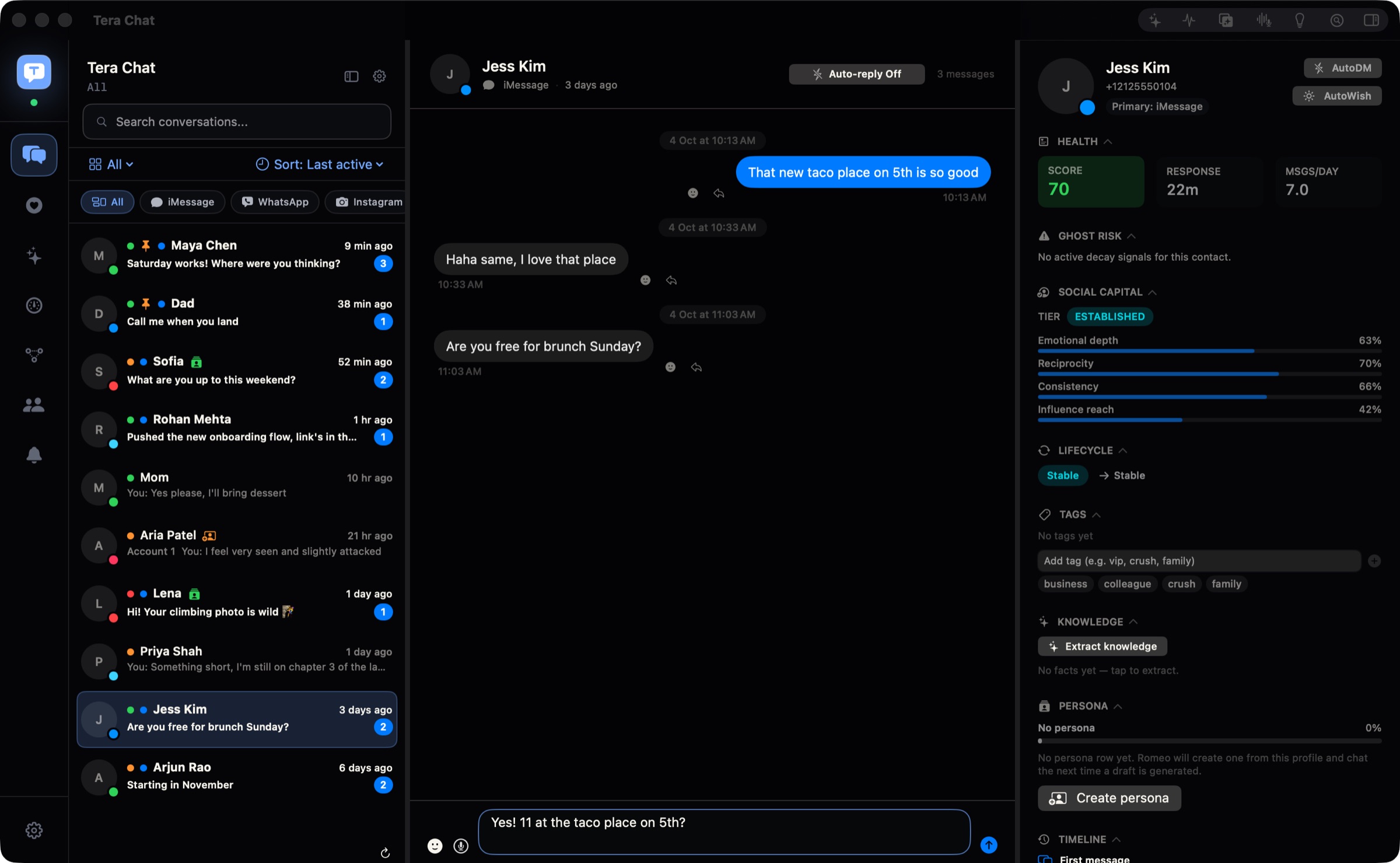
If you prefer to stay in the menu bar instead of switching windows, see how to reply from your Mac’s menu bar. For finding old messages quickly, see how to search all your messages on a Mac at once, and for keeping every network in one window, how to combine WhatsApp, iMessage, Telegram and Instagram in one Mac app.
The short version
Learn ⌘F, ⌘R, ⌘T, ⌘E, ⇧⌘U and ⌃Tab in Messages first. Use the menu bar to discover WhatsApp’s and Telegram’s shortcuts, and App Shortcuts to add any that are missing. For choosing the right app for each network in the first place, start with the best messaging apps for Mac in 2026.
Frequently asked questions
How do you reply to a specific message in Messages on a Mac with the keyboard?
Select the message and press Command-R. Without a selection, Command-R replies to the last incoming message in the conversation.
How do you add a new line in Messages without sending?
Press Option-Return or Shift-Return. Return on its own sends the message.
Is there a shortcut to mark a message as unread on a Mac?
Yes. In Messages, Shift-Command-U marks the selected conversation as unread or read.
Why doesn't a shortcut work in WhatsApp or Telegram?
Lists online often mix up WhatsApp Web and WhatsApp for Mac, and Telegram has two different Mac apps, so a list written for one may not apply to yours. The app's own menus show the shortcuts that work in the version you have.
What is the Tera Chat shortcut to open the app?
Command-Shift-M brings Tera Chat forward from any app. You can change it in Settings → General.
Published . How we write and check our guides. Spotted something out of date? Email hello@terachat.co.