How to see who you text the most (iPhone, Mac, WhatsApp, Instagram)
No app shows who you text the most. Here's how to see it anyway: a Mac Messages query, Telegram's hidden ranking, and a free chat analyzer.
The short answer
- No messaging app shows a count of who you text the most: iPhone, WhatsApp and Instagram have no such screen, and the lists people point to rank storage, not messages.
- For iMessage, the accurate answer comes from your Mac: one read-only command on the Messages database ranks every conversation by message count, but Terminal needs Full Disk Access first.
- WhatsApp's Manage storage list and iPhone's Top Conversations measure how much space a chat's photos and videos take, so a meme-heavy group can outrank the person you text every day.
- Telegram keeps its own 'frequent contacts' rating, which shows in search and in a Telegram Desktop data export.
- For WhatsApp, Telegram and Instagram, export a chat and open it in a free analyzer that runs in your browser to see messages per person, who starts conversations and reply times.
No messaging app has a button that shows who you text the most. On iPhone, WhatsApp, Instagram and Telegram, the closest built-in lists rank chats by storage or by a hidden “frequent contacts” score, not by message count. To get a real count, use your Mac for iMessage (one read-only command on the Messages database, after giving Terminal Full Disk Access), and for WhatsApp, Telegram and Instagram, export the chat and open it in our free chat analyzer, which counts messages in your browser without uploading anything.
This guide goes app by app: what each built-in list really measures, the method that gives an actual number, and the catches (duplicate contacts, group chats, missing history). We checked every menu path against WhatsApp’s, Instagram’s and Apple’s help pages, and against Telegram Desktop’s source code, on 20 October 2026.
Which method works for each app?
Pick your app, then jump to its section. “Accurate” means a real message count rather than a proxy.
| App | Built-in list | What that list actually ranks | Accurate method |
|---|---|---|---|
| iPhone Messages | Top Conversations in iPhone Storage | Storage used, mostly photos and videos | Count on a Mac with Messages in iCloud |
| Messages on Mac | None | Nothing | One read-only Terminal command (needs Full Disk Access) |
| Manage storage | Space used by each chat’s media | Export the chat, open it in the analyzer | |
| Telegram | Frequent contacts in search | Telegram’s own “likely to message” rating | JSON export (one chat or your whole account), open it in the analyzer |
| None | Nothing | Export your messages as JSON, open the .zip in the analyzer |
iPhone: what Top Conversations really shows
Top Conversations ranks your threads by how much storage they use, not by how many messages they hold. iPhone users have long found it under Settings → General → iPhone Storage → Messages (Apple Community thread). We couldn’t find it in Apple’s own guides, and Settings screens move between iOS versions, so treat the path as a pointer.
A thread full of photos, videos and voice notes floats to the top even if you rarely type in it, while a friend you text plain words to all day can sit near the bottom. It’s a rough hint at best.
One warning: that screen lets you delete conversations, and if you use Messages in iCloud, deleting there removes them from iCloud and your other devices too (Michael Tsai). Look, don’t swipe. If it’s space on your Mac you’re short of, see how to free up the space Messages takes on a Mac.
For a true count, use a Mac. With Messages in iCloud on, your Mac keeps the same history as your iPhone, and you can count it in a minute.
Mac: rank every iMessage conversation with one command
Your Mac stores your Messages history in a database file called chat.db, and macOS ships with the sqlite3 tool that can read it. The catch is that chat.db is protected: Terminal can only open it after you give Terminal Full Disk Access. Without it, you get an error ending in “authorization denied”.
Step 1: make sure your full history is on the Mac
In Messages on your Mac, choose Messages → Settings, click iMessage, and check that Enable Messages in iCloud is selected (Apple). If you only just turned it on, give it time to download older messages first, or the count will be short.
Step 2: give Terminal Full Disk Access
- Open System Settings → Privacy & Security → Full Disk Access.
- Click +, open Applications → Utilities, choose Terminal and click Open. Confirm with Touch ID or your password.
- Quit Terminal (⌘Q) and open it again.
Full Disk Access applies to everything you run in Terminal, so switch it off again when you’re done. Our guide to Full Disk Access explains what the permission covers.
Step 3: run the count
Paste this into Terminal as one line and press Return:
sqlite3 -readonly -header -column ~/Library/Messages/chat.db "SELECT COALESCE(NULLIF(c.display_name, ''), c.chat_identifier) AS conversation, COUNT(*) AS messages, SUM(m.is_from_me) AS sent_by_you FROM chat c JOIN chat_message_join cmj ON cmj.chat_id = c.ROWID JOIN message m ON m.ROWID = cmj.message_id WHERE m.item_type = 0 AND COALESCE(m.associated_message_type, 0) < 1000 GROUP BY c.ROWID ORDER BY messages DESC LIMIT 20;"
You get your 20 busiest conversations, biggest first, with three columns: the conversation (a phone number, an email address, a group’s name, or for an unnamed group an ID starting with “chat”), the total number of messages, and how many of those you sent. The -readonly flag means the command can’t change anything in your Messages history. It also skips Tapbacks (hearts, thumbs-up and other reactions) and group notices such as renames or people joining and leaving, which the database stores as separate rows.
Step 4: count just this year
To rank only 2026, use this version (change the date for another year):
sqlite3 -readonly -header -column ~/Library/Messages/chat.db "SELECT COALESCE(NULLIF(c.display_name, ''), c.chat_identifier) AS conversation, COUNT(*) AS messages, SUM(m.is_from_me) AS sent_by_you FROM chat c JOIN chat_message_join cmj ON cmj.chat_id = c.ROWID JOIN message m ON m.ROWID = cmj.message_id WHERE m.item_type = 0 AND COALESCE(m.associated_message_type, 0) < 1000 AND m.date >= (strftime('%s', '2026-01-01') - 978307200) * 1000000000 GROUP BY c.ROWID ORDER BY messages DESC LIMIT 20;"
The odd-looking number converts the date: Messages stores times as nanoseconds since 1 January 2001.
How to read the results
- The same person can appear twice. Messages can keep separate conversations for someone’s phone number and email address, or for their iMessage and SMS threads. Add those rows together.
- Group chats count everyone’s messages. A busy group can top the list without you writing much in it; the
sent_by_youcolumn shows your share. - Numbers, not names. The command shows phone numbers and emails. Search the number in Contacts, or use one of the iMessage Wrapped tools, several of which look up names for you.
- Only what’s on this Mac. Messages deleted, or never synced, aren’t counted.
When you’re finished, go back to Full Disk Access and switch Terminal off.
WhatsApp: what Manage storage ranks, and how to count properly
WhatsApp’s storage tools measure how much space chats and their media take up, not how many messages they hold. On iPhone, tap your profile picture, then Storage and data → Manage storage; on Android, go to Settings → Storage and data → Manage storage (WhatsApp Help Center). From there you can review media chat by chat, and inside any chat, tapping its name and then Manage storage shows how much space that chat’s media uses.
So any ranking you get from these screens is a media ranking. A family group that shares videos will beat a partner you text all day in plain words. WhatsApp’s current help pages describe no message count for any chat.
To count, export the chat and open the file in the analyzer:
- On your phone, open the chat and export it. On iPhone, tap the contact’s or group’s name, then Export chat and Without media. On Android, tap ⋮ → More → Export chat → Without media (WhatsApp Help Center).
- Save the export to Files, or send it to yourself.
- Open the chat analyzer and drop in the
.zip, or the.txtinside it.
You see messages and words per person, who starts conversations (the first message after six or more hours of quiet), each person’s typical reply time, double texts, the busiest day and your longest streak of consecutive days. To find your top contact, export your three or four likeliest chats and compare the totals. Exporting a group chat instead? Our guide to group chat awards shows what to do with its numbers. If you’d rather have an AI read a chat than count it, our guide to asking ChatGPT or Claude to analyze your texts covers what to remove first.
Telegram: the ranking Telegram already keeps
Telegram is the one app here that tracks something close to “who you text most”. It keeps a rating of the people you’re “likelier to message frequently” and uses it to fill the People row at the top of search, according to the text in Telegram Desktop’s own data export (Telegram Desktop source). If that row is empty, the setting may be off: it’s called Suggest frequent contacts, under Settings → Privacy and Security.
To see the scores themselves, use Telegram Desktop from desktop.telegram.org. (The native “Telegram for macOS” app has no export option.) Go to Settings → Advanced → Export Telegram data and tick Contacts list. The export then includes a “frequent contacts” section listing people with a rating each. It’s Telegram’s score, not a message count.
For real numbers, tick Personal chats in that same export and choose Machine-readable JSON as the format. Open the result.json it saves in the Telegram chat analyzer, which lists every chat in the file so you can open them one by one and compare totals. For a single chat, open it and click ⋮ → Export chat history instead. Our guide to exporting chats on a Mac walks through every option.
Instagram: export your DMs as JSON
Instagram has no message count anywhere in the app, but its data export includes your full DM history, and the analyzer can count it. The export runs through Accounts Center (Instagram Help Center):
- In Instagram’s settings, open Accounts Center → Your information and permissions → Export your information.
- Click Create export, choose your Instagram profile, click Next, then Export to device.
- Narrow the export to messages only, pick a date range, and set the format to JSON. The analyzer can’t read the HTML version.
- Click Start export. Instagram says the link can take up to 30 days to arrive, and once it’s ready you have four days to download it.
Drop the whole .zip into the Instagram chat analyzer: it lists every conversation in the download, so you can open each one and compare the counts. If you unzip it yourself, each conversation has its own folder inside messages/inbox (recent downloads put that under your_instagram_activity), with message_1.json inside. Long conversations are split across message_2.json and more, so a folder with several files is a quick first hint at who you message most.
Can Tera Chat show who you talk to most?
Partly. Tera Chat for Mac is a free Mac app (made by the team behind this blog) that brings iMessage, WhatsApp, Telegram, Instagram and Tinder into one inbox. Its Contacts list shows every contact from every app with their tier, relationship health, platform and when you last talked, and each person’s profile shows how often you talk and how fast you reply.
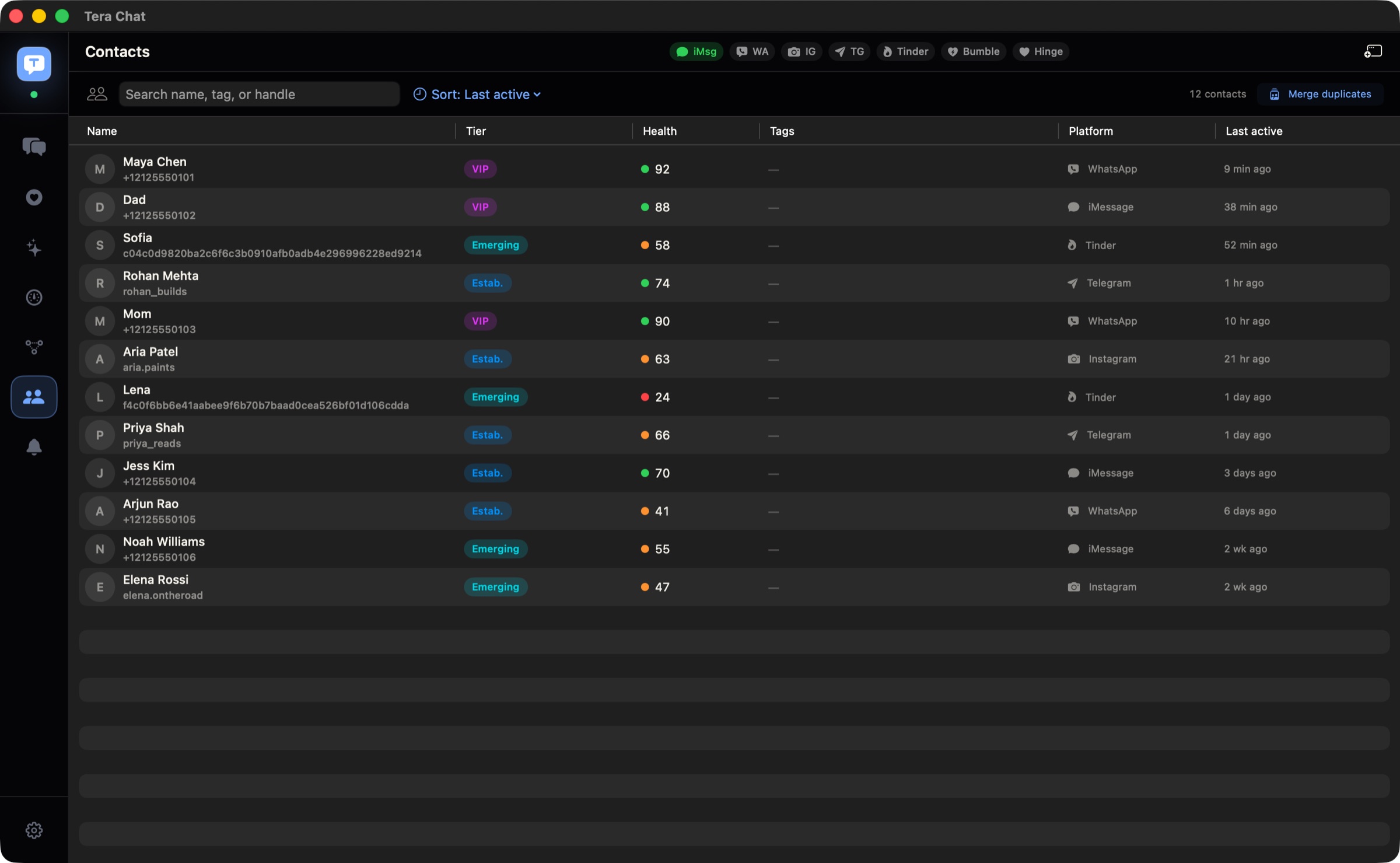
It isn’t a lifetime leaderboard: the health score looks at the last 30 days, so it tells you who you’re close to right now rather than who you’ve texted most since 2019. Tera Chat needs a Mac with Apple silicon and macOS 15 or later, and reading iMessage needs Full Disk Access, just like the command above.
Which method should you use?
- You mainly use iMessage and have a Mac: run the Terminal command. It’s the only exact answer for iMessage, and the year version gives you a mini “wrapped”.
- You live in WhatsApp: ignore the storage list. Export your top few chats and compare them in the analyzer.
- Telegram: glance at the People row in search, then export your chats as JSON from Telegram Desktop for real numbers.
- Instagram: request a JSON export now, since it can take a while to arrive.
The bigger question behind “who do I text the most” is usually whether that’s who you want it to be. If the list surprises you, our guide to keeping in touch with friends has a simple system for the people who slipped down it.
Frequently asked questions
Can you see who you text the most on iPhone?
Not directly. The Top Conversations list under iPhone Storage ranks chats by how much space they take, which mostly means photos and videos. For a real message count, use a Mac signed in to the same Apple Account with Messages in iCloud turned on, and count there.
Does WhatsApp show how many messages you've sent someone?
Not in WhatsApp's current help pages. Manage storage shows how much space each chat's media uses. To count messages, export the chat and open it in a chat analyzer.
Can I count my iMessages without a Mac?
Only with extra tools. The free, open-source imessage-exporter can read an iPhone backup on a Mac, Windows or Linux computer, but it exports messages rather than ranking contacts, so you'd still need to count the results.
Is the chat analyzer private?
Yes. It reads the export file on your own device and never uploads it, needs no account, and sets no cookies. You can check in your browser's network tab that no request carries the file.
Why does the same person appear twice in my Mac results?
Messages can keep separate conversations for one person's phone number and email address, or for their iMessage and SMS threads. Add those rows together for that person's total.
Published . How we write and check our guides. Spotted something out of date? Email hello@terachat.co.