How to text from a MacBook or Mac: iMessage, SMS, RCS and WhatsApp
How to text from a MacBook or any Mac: iMessage, SMS and RCS to Android through your iPhone, Android phones, WhatsApp and Telegram, and what can't be done.
The short answer
- Messages on a Mac sends iMessages (blue bubbles) to other Apple users with nothing more than your Apple Account. No iPhone is needed for that.
- To text Android phones by SMS, MMS or RCS (green bubbles) from a Mac, Apple requires an iPhone on the same Apple Account with Text Message Forwarding turned on, and that iPhone has to be on and connected.
- Apple offers no way to send SMS or RCS from a Mac without an iPhone. If your phone is an Android, Google Messages for web works in Safari instead.
- WhatsApp and Telegram both have free Mac apps, but you need a phone to register WhatsApp and a mobile number for a Telegram account.
- iPhone Mirroring (macOS 15 or later) puts your whole iPhone on the Mac's screen, but as of October 2026 Apple says it isn't available in the European Union.
To text from a MacBook or any Mac, open the Messages app and sign in with your Apple Account: you can then send iMessages (blue bubbles) to anyone who uses iMessage on an iPhone, iPad or Mac. To text Android phones by SMS, MMS or RCS (green bubbles), you also need an iPhone signed in to the same Apple Account with Text Message Forwarding turned on, because your Mac hands those texts to the iPhone to send. Apple offers no way to send SMS from a Mac without an iPhone; if you use an Android phone, Google Messages for web does the job in Safari. For WhatsApp and Telegram, install their free Mac apps.
Apple spreads this across several support pages, so this guide puts it in one place: which route fits your phone, step-by-step setup for each, what can’t be done, and how to keep several chat apps manageable on one Mac. Everything was checked against Apple’s, Google’s, WhatsApp’s and Telegram’s help pages on 20 October 2026.
Which way to text from a Mac? (checked 20 October 2026)
It depends on who you’re texting and which phone you own. The short version:
| You want to text… | Use | What you need | Limits |
|---|---|---|---|
| iPhone, iPad or Mac users | Messages (iMessage) | A Mac signed in to your Apple Account | Apple devices only |
| Android phones, from your iPhone’s number | Messages (SMS, MMS, RCS) | An iPhone on the same Apple Account with Text Message Forwarding on; the iPhone has to be on and connected | No iPhone, no SMS; availability varies by carrier and region |
| Anyone, from your Android phone’s number | Google Messages for web in Safari | An Android phone (Android 5.0 or later) with Google Messages, paired to the browser | Runs through your phone’s connection; carrier fees apply |
| Anyone, using your iPhone’s own apps | iPhone Mirroring | macOS 15 or later, an Apple silicon or T2 Mac, iOS 18 or later, iPhone locked and nearby | Not available in the EU |
| WhatsApp contacts | WhatsApp for Mac, or WhatsApp Web | WhatsApp on a phone to register and link | Up to four linked devices |
| Telegram contacts | Telegram for macOS | A Telegram account (tied to a mobile number) | None for basic texting |
How do you send an iMessage from a Mac?
Open Messages, sign in with your Apple Account, and type a phone number, email address or contact name. iMessage goes over the internet, so the Mac doesn’t need your iPhone for it. Setting up a new Mac? Our guide to getting your messages on a new Mac covers your history and other apps too.
- Open Messages (it’s in your Applications folder, or press ⌘Space and type “Messages”).
- Sign in with your Apple Account email or phone number when asked. If you aren’t asked, choose Messages > Settings, click iMessage and sign in there. Apple says to use the same Apple Account on every device.
- Click the new-message button at the top of the sidebar.
- In the To field, enter the person’s phone number, contact name or Apple Account email.
- Type your message and press Return.
Blue bubbles mean the message went as iMessage, which Apple says is end-to-end encrypted. If the person isn’t on iMessage, the message can’t go as a blue bubble, and without an iPhone your Mac can’t fall back to SMS.
No iPhone at all? You can still iMessage anyone who uses iMessage, by their phone number or email. Your messages will come from your Apple Account email rather than a phone number.
Want it to arrive later? On macOS 15 or later, click the Apps button to the left of the message field, choose Send Later, and pick a time up to 14 days ahead. Apple’s Send Later guide lists iMessage as a requirement.
How do you text an Android phone from a Mac?
You need an iPhone. Apple’s own wording is that “if you have an iPhone, you can also send SMS, MMS, or RCS text messages to any mobile phone from your Mac” (Apple). The Mac passes each green-bubble text to the iPhone, which sends it over your carrier.
Set it up once:
- Make sure your iPhone and Mac are signed in to the same Apple Account.
- On the iPhone, open Settings > Apps > Messages and check that iMessage is on.
- Tap Text Message Forwarding.
- Turn on your Mac in the list of devices.
- If a code appears on the Mac, type it on the iPhone. Apple says this only happens on devices that don’t use two-factor authentication.
If you use Messages in iCloud, you don’t need a separate step: Apple says Text Message Forwarding is built into it.
For it to keep working, Apple’s forwarding guide says the iPhone must be “turned on, connected to a Wi-Fi or cellular network, and can send and receive messages”. Texts use your carrier plan, and availability varies by region and carrier. If green-bubble texts stop showing up on the Mac, our guide to Messages on Mac not syncing with your iPhone walks through the fixes in order.
Can you send RCS from a Mac?
Yes, the same way: RCS from a Mac goes through your iPhone. Apple says RCS needs iOS 18 and a carrier that supports RCS on iPhone; you turn it on in Settings > Apps > Messages > RCS Messaging on the iPhone. RCS adds high-resolution photos, delivery and read receipts, and typing indicators to green-bubble chats.
On encryption, Apple says that starting with iOS 26.5, end-to-end encrypted RCS (beta) is rolling out with supported carriers, and a conversation is only encrypted when every participant’s carrier supports it. Encrypted RCS chats show “Encrypted” with a lock at the top. Apple’s Mac guide only covers RCS through Text Message Forwarding: without an iPhone, there’s no RCS.
If your phone is an Android
Apple’s Text Message Forwarding only works with an iPhone, so use Google’s web app instead. Google says it works in Safari, Chrome, Firefox and Edge:
- On your Mac, go to messages.google.com/web and sign in with the same Google Account as your phone.
- On the Android phone, open Google Messages, open your account menu and choose Device Pairing.
- Tap the emoji on your phone that matches the one on your Mac’s screen.
Your phone needs Android 5.0 or later and a Wi-Fi or data connection, since the web app sends SMS through the phone. Carrier fees apply.
How do you use your iPhone’s apps on a Mac?
With iPhone Mirroring, your iPhone’s screen appears in a window on the Mac and you can use its apps, including Messages and apps that have no Mac version. Apple lists these requirements:
- A Mac with Apple silicon or the Apple T2 Security Chip, running macOS Sequoia 15 or later.
- An iPhone with iOS 18 or later and a passcode.
- Both signed in to the same Apple Account with two-factor authentication, with Bluetooth and Wi-Fi on.
- The iPhone locked and near the Mac.
Open the iPhone Mirroring app on your Mac and follow the setup steps. As of October 2026, Apple says “iPhone Mirroring is currently unavailable in the European Union”. It also can’t use the iPhone’s camera or microphone, so it’s for typing, not calls.
Can you use WhatsApp and Telegram on a Mac?
Yes. Both have free Mac apps, and both keep working when your phone is out of reach.
WhatsApp. Download WhatsApp from the Mac App Store or whatsapp.com/download, or use WhatsApp Web in any browser. You link the Mac by scanning a QR code with WhatsApp on your phone (Settings > Linked Devices > Link a Device). WhatsApp allows up to four linked devices and you still need your phone to register the account. The phone doesn’t need to stay online, but linked devices are logged out if you don’t use the phone for more than 14 days. Our guide to WhatsApp on Mac compares the app with WhatsApp Web.
Telegram. Get Telegram for macOS from the Mac App Store or Telegram’s own website. Telegram is cloud-based, so once you’ve signed in, the Mac works on its own. Telegram’s FAQ says accounts “can only be connected to a mobile number”, so you need one to sign up. Telegram has more than one Mac app; our guide to Telegram on Mac explains which one to pick.
What can’t you do from a Mac?
Here’s what Apple’s and the apps’ own help pages rule out, as of October 2026:
- SMS or RCS from Messages without an iPhone. Blue-bubble iMessage works on its own; green-bubble texts need the iPhone.
- Text Message Forwarding with an Android phone. Apple’s feature is iPhone-only. Android users have Google Messages for web.
- Green-bubble texts while the iPhone is off or offline. Apple requires the iPhone to be on and connected for them. iMessage still works from the Mac.
- iPhone Mirroring in the European Union.
- WhatsApp or Telegram with no phone number. WhatsApp needs a primary phone to register; Telegram accounts are tied to a mobile number.
How to keep several texting apps manageable
If your texting is split between Messages, WhatsApp and Telegram (and maybe Instagram DMs), each app above works, but you end up checking several windows. The overview of the best messaging apps for Mac covers every network’s native option, and combining WhatsApp, iMessage, Telegram and Instagram in one Mac app compares the all-in-one routes.
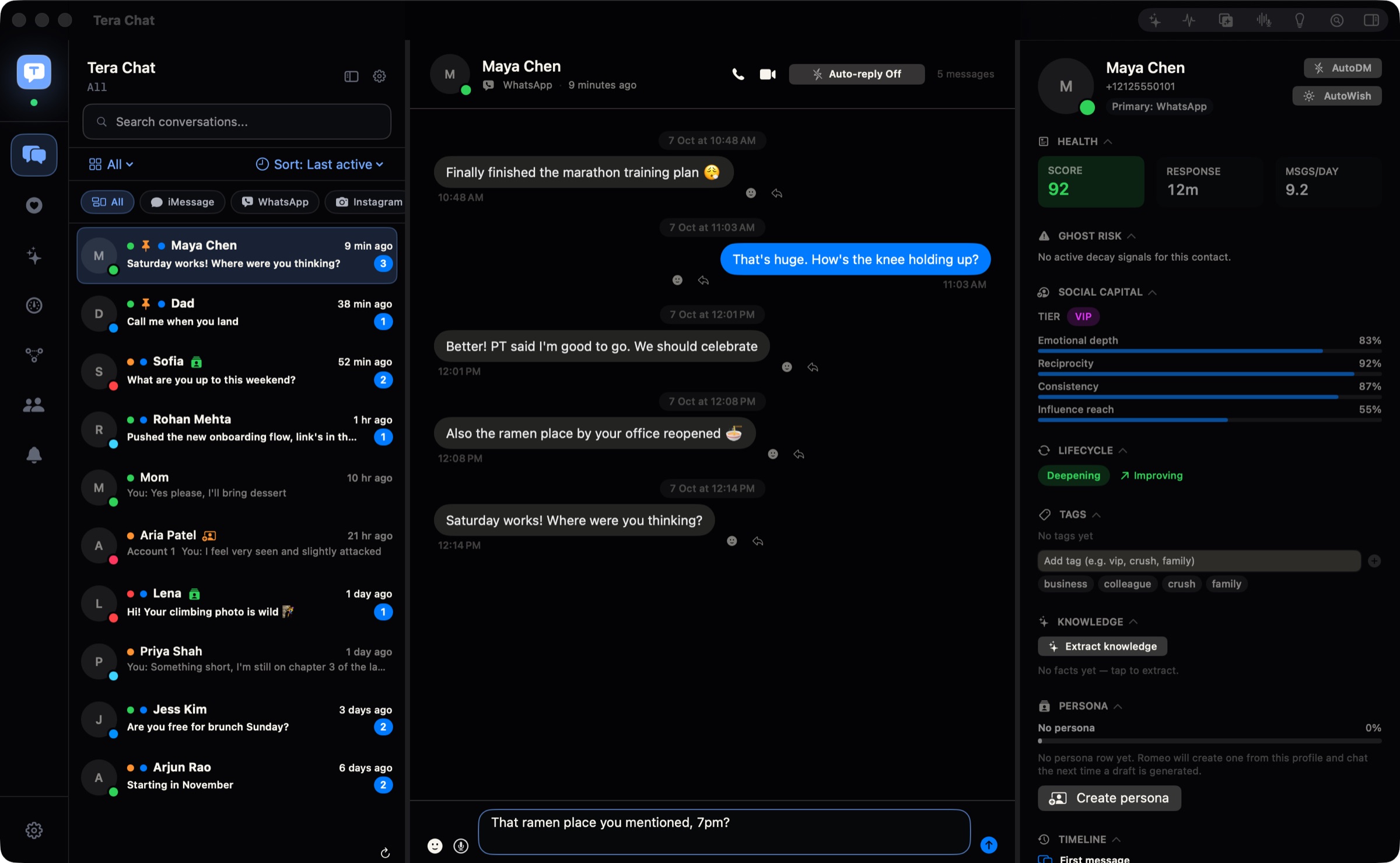
One of those routes is Tera Chat for Mac, which is our app: a free Mac app that brings iMessage, WhatsApp, Telegram, Instagram and Tinder into one inbox and drafts replies in your own texting style. What to know before you try it:
- iMessage: Tera Chat reads your Messages history on the Mac, which needs Full Disk Access (what that permission is and how to revoke it). Sending goes through the Messages app, and Tera Chat’s replies go out as iMessage. SMS threads already in your Messages history show up, but replies to them still go as iMessage, and RCS isn’t supported, so keep using Messages for green-bubble chats with Android users.
- WhatsApp: you pair it like WhatsApp Web, by scanning a QR code. Sending from Tera Chat is text only. Tera Chat isn’t made by or affiliated with WhatsApp, and WhatsApp’s help center warns that linking an account to unofficial apps could get it temporarily or permanently banned.
- Telegram and Instagram: read and send.
- Requirements: a Mac with Apple silicon (M1 or newer) on macOS 15 Sequoia or later. The app and inbox are free with no time limit, and your messages stay on your Mac.
- Not a fit if you need Signal, Messenger, Windows or a phone app: stick with each network’s own apps or a cross-platform inbox.
What to do next
If everyone you text has an Apple device, sign in to Messages and you’re done. If you text Android users, set up Text Message Forwarding on your iPhone once and keep the iPhone charged and connected. If your phone is an Android, pair Google Messages for web. Add the WhatsApp and Telegram Mac apps for those networks, and if switching between them gets tiring, try a single inbox.
Frequently asked questions
Does my iPhone need to be near my Mac to send texts?
For iMessage, no: the Mac sends on its own. For SMS, MMS and RCS, Apple's requirement is that the iPhone is turned on and connected to Wi-Fi or a cellular network; it doesn't list being nearby. iPhone Mirroring is different and does need the iPhone close to the Mac.
Does texting from a Mac cost anything?
iMessage uses your internet connection. SMS, MMS and RCS sent from the Mac go out through your iPhone and its carrier plan, so your usual texting rates apply.
Why are some of my messages green on my Mac?
Green bubbles are SMS, MMS or RCS messages, which your iPhone sends when iMessage isn't available for that person, usually because they don't have an Apple device. Blue bubbles are iMessage.
Can I schedule a text from my Mac?
Yes, for iMessage. On macOS 15 or later, click the Apps button next to the message field, choose Send Later and pick a time up to 14 days ahead.
Can Tera Chat for Mac send SMS or RCS?
No. SMS threads already in your Mac's Messages history appear in Tera Chat, but its replies go out as iMessage, and RCS isn't supported. Use the Messages app for green-bubble conversations.
Published . How we write and check our guides. Spotted something out of date? Email hello@terachat.co.