WhatsApp for Mac in 2026: the app vs WhatsApp Web
WhatsApp for Mac in October 2026: the free native app, macOS 12.1+, four linked devices, the 14-day rule, calls on Mac and Web, and how to set it up.
The short answer
- WhatsApp has a free native Mac app (macOS 12.1 or later) on the Mac App Store and at whatsapp.com, plus WhatsApp Web at web.whatsapp.com for any modern browser.
- Your Mac links to your phone as one of up to four linked devices. It keeps working when the phone is off, but logs out if the phone goes unused for more than 14 days.
- The Mac app can access more history than WhatsApp Web (up to three years, per WhatsApp) and makes voice and video calls with up to 32 people.
- WhatsApp began rolling out voice and video calls on WhatsApp Web on 28 July 2026, which makes the browser a real option for borrowed or work computers.
- If WhatsApp is one of several chat apps you check, a unified inbox can show it next to iMessage, Telegram and Instagram, but keep WhatsApp's own app for calls and notifications.
Yes, WhatsApp has a free native app for Mac. As of October 2026 it needs macOS 12.1 or later, comes from the Mac App Store or whatsapp.com, and links to the WhatsApp account on your phone by scanning a QR code. If you can’t or don’t want to install anything, WhatsApp Web at web.whatsapp.com does the same job in a browser, and since late July 2026 WhatsApp has been rolling out calls there too.
This guide covers the facts that decide which one to use (device limits, the 14-day rule, history, calls), step-by-step setup for both, and what to do if WhatsApp is only one of several chat apps you juggle on your Mac.
WhatsApp on Mac at a glance (checked 20 October 2026)
The short version: one free app, one browser option, and both depend on your phone staying in use.
| Question | Answer |
|---|---|
| Is there an official Mac app? | Yes: WhatsApp Messenger by WhatsApp Inc., free on the Mac App Store (version 26.40.77, 214.9 MB) or from whatsapp.com/download |
| Which macOS? | macOS 12.1 or later, per the App Store listing and WhatsApp’s help center. The download page still says macOS 11; go by 12.1 |
| Do you need a phone? | Yes. A Mac can’t be your primary device; you register on a phone and link the Mac to it |
| How many devices? | Up to four linked devices at once, per WhatsApp’s linked devices FAQ |
| Phone switched off? | The Mac keeps working, but linked devices log out if the phone goes unused for more than 14 days |
| Mac left unused? | WhatsApp disconnects a linked device after 30 days of inactivity |
| Message history | The Mac app can access up to three years; WhatsApp Web syncs less. The full history stays on the phone |
| Calls | Mac app: voice and video with up to 32 people, screen sharing, call links. Web: one-to-one and group calls rolling out since 28 July 2026 |
| Missing on linked devices | Viewing live location, broadcast lists, and WhatsApp Flows with businesses |
The current Mac app is a native app that replaced the older Electron-based “WhatsApp Desktop”, which WhatsApp retired in late 2024. Guides that still call the Mac app “beta” are out of date.
WhatsApp for Mac vs WhatsApp Web: which should you use?
Use the Mac app on your own Mac; use WhatsApp Web on a computer you don’t own, an old Mac, or when you can’t install software. Both are linked devices with the same account, chats and encryption. The differences are history, calls and convenience.
| WhatsApp for Mac (app) | WhatsApp Web | |
|---|---|---|
| Where | Mac App Store or whatsapp.com | web.whatsapp.com in the latest Chrome, Firefox, Edge, Opera or Safari |
| Install needed | Yes | No |
| Message history | More: up to three years, per WhatsApp | Less than the app |
| Calls | Voice and video with up to 32 people, screen sharing, call notifications even with the app closed | One-to-one and group voice and video calls, with call transfer between devices (rolling out since July 2026) |
| Chat lock and app lock | Not supported, per WhatsApp’s help center | Both available |
| Best for | Daily use on your own Mac | Borrowed or work computers, Macs older than macOS 12.1 |
WhatsApp’s help page on message history on linked devices says it plainly: “WhatsApp Desktop syncs more message history than WhatsApp Web.” If you search old chats on your computer, that alone is a reason to install the app. For keeping a copy of that history, see how to back up WhatsApp on a Mac.
Web calls are new. 9to5Mac reported on 28 July 2026 that WhatsApp was rolling out one-to-one and group voice and video calls on the web, including moving a call between devices without hanging up. The rollout was gradual, so if you don’t see call buttons on Web yet, use the Mac app or your phone.
How to install WhatsApp on a Mac and link it
The setup takes about two minutes: install, scan a QR code with your phone, then wait for recent chats to copy over.
- Download WhatsApp Messenger from the Mac App Store, or get the installer from whatsapp.com/download.
- Open WhatsApp on your Mac and follow the prompts until it shows a QR code.
- On your phone, open WhatsApp and go to the linked devices screen (labels as of October 2026; they vary slightly between app versions):
- iPhone: Settings (or your profile picture) > Linked devices > Link device.
- Android: the More options (three dots) menu > Linked devices > Link a device.
- If asked, confirm it’s you with Face ID, Touch ID, your fingerprint or your phone’s PIN.
- Point the phone at the QR code on your Mac.
- Leave both devices online while your recent chats arrive. WhatsApp says this “can take a few minutes” depending on how many messages you have.
If scanning doesn’t work (a broken phone camera, for example), WhatsApp also offers linking with your phone number and a one-time code, but as of October 2026 its help center says that option works only on WhatsApp Web and WhatsApp for Windows, not the Mac app.
If WhatsApp doesn’t recognize the device, it asks you to confirm with Link device or Don’t link. Only link a computer you’re sitting in front of. With push notifications on, WhatsApp also alerts your phone about linked devices, so you can tap the alert to review and remove one you don’t recognize.
How to use WhatsApp Web in a browser
WhatsApp Web works the same way, minus the install.
- Open web.whatsapp.com in an up-to-date Chrome, Firefox, Microsoft Edge, Opera or Safari.
- On your phone, go to Linked devices > Link device (same path as above) and scan the QR code in the browser. WhatsApp may also ask you to create or use a passkey in the browser.
- When you’re finished on a shared computer, log out in WhatsApp Web (Settings > Log out), or from your phone (see below).
Tip: in Safari on macOS Sonoma or later you can choose File > Add to Dock to turn WhatsApp Web into a Dock web app with its own window and badge. It’s still WhatsApp Web, with Web’s smaller history. If you have a second WhatsApp number, our guide to using two WhatsApp accounts on one Mac shows how to run it alongside the app.
Can you use WhatsApp on a Mac without your phone?
Partly. You can’t set up WhatsApp on a Mac without a phone, but once the Mac is linked it works with the phone switched off, out of battery or out of signal.
The catch is the 14-day rule. WhatsApp’s help center says linked devices “will log out if your phone is unused for over 14 days.” Open WhatsApp on the phone at least once every two weeks and your Mac stays connected. Separately, WhatsApp disconnects a linked device that you haven’t used for 30 days.
The one exception to “you need a phone” is an Android tablet, which WhatsApp lets you register as a primary device. Macs, iPads, Windows PCs and browsers can only be linked devices.
Calls on your Mac
The Mac app makes voice and video calls with up to 32 people. To call, you need a microphone and speakers (and a camera for video), and macOS will ask you to allow WhatsApp to use them the first time. You can also create call links, share your screen in a video call, join a group call that has already started, and get call notifications when the app is closed.
On WhatsApp Web, calls arrived in July 2026; check for the call buttons at the top of a chat.
Can you lock WhatsApp on a Mac?
Not in the Mac app, going by WhatsApp’s help center as of October 2026, but WhatsApp Web has both kinds of lock. WhatsApp’s chat lock page says chat lock “is currently not supported on WhatsApp for Mac” (WhatsApp), and its app lock page says app lock “is not yet available for WhatsApp on Mac” (WhatsApp). Its account security tips page does list Mac among the apps where a password can lock WhatsApp, so the help center isn’t consistent on this point. For Messages and Telegram too, see how to hide or lock chats on a Mac.
On WhatsApp Web, per the same pages:
- App lock: go to Settings > Privacy > App lock, set a password (6 to 128 characters), and choose whether it locks after 1 minute, 15 minutes, 1 hour or 8 hours. To lock it straight away, choose Lock app from the More options (three dots) menu, or press ⌘⌃L. Notifications don’t appear while it’s locked.
- Chat lock: right-click a chat and choose Lock chat. Locked chats sit in a Locked chats folder, and opening them on the web takes a secret code that you create in WhatsApp on your phone.
How to log out or unlink your Mac
From your phone, open Linked devices, tap your Mac in the list, then tap Log out and confirm (WhatsApp’s steps). On the Mac itself, go to WhatsApp’s Settings > Log out. The phone’s list is also the place to remove any device you don’t recognize. Unlinking frees one of your four slots.
When WhatsApp on Mac isn’t working
Most problems come from the linked-device rules above: the phone hasn’t been used in 14 days, history is still copying from the phone, or a network is blocking WhatsApp. WhatsApp’s own connection checklist starts with quitting and restarting the app, then logging out and back in, then reinstalling. Our guide to WhatsApp on Mac not syncing walks through each fix in order, from quickest to most drastic.
If just one chat is missing on your Mac while the rest sync, someone in it may have turned on Restricted chat: WhatsApp says people in a restricted chat can’t use linked devices for it (WhatsApp).
Using WhatsApp next to iMessage, Telegram and Instagram
If WhatsApp is one of four chat apps you keep open, the official app is still where calls and notifications work best. What it can’t do is show your WhatsApp chats in the same list as iMessage or Telegram. For that you need a unified inbox, and there are a few honest options, compared in our best messaging apps for Mac guide.
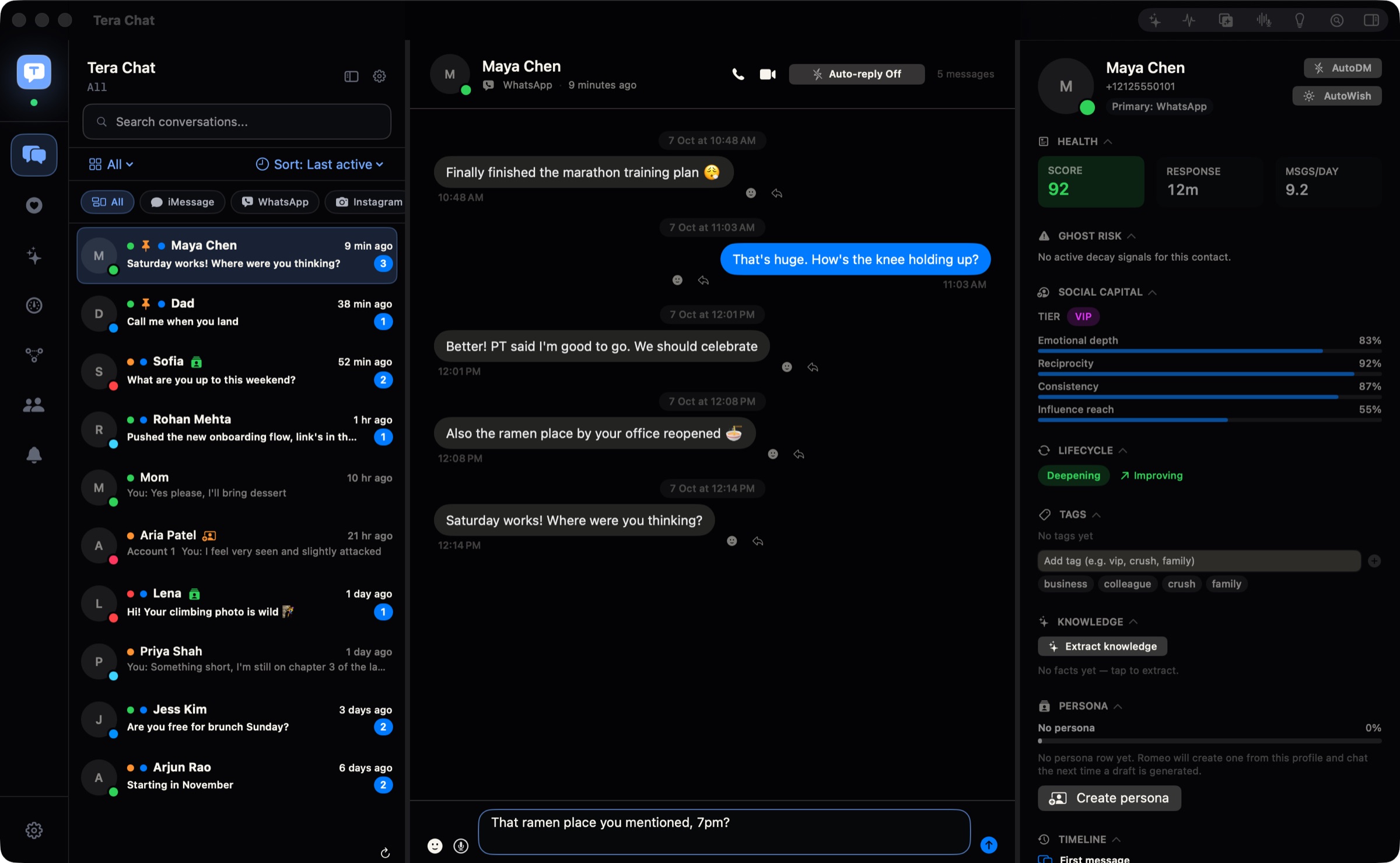
Tera Chat is our app: a free Mac app that brings iMessage, WhatsApp, Telegram, Instagram and Tinder into one inbox and drafts replies in your own texting style. Here’s how WhatsApp works in it, limits included (all of it is also on the Tera Chat with WhatsApp page):
- Linking is the same QR scan. Go to Settings > Messaging > WhatsApp > Pair device, then scan the code from your phone’s Linked devices screen, the way you would for WhatsApp Web. It uses one of your four linked-device slots, and WhatsApp’s linked-device rules apply to it too, including the 14-day logout. One WhatsApp account per Mac.
- What works: WhatsApp chats sync in real time, with media, in one list next to your other networks. Once AI is set up (your ChatGPT account through Codex, a Claude or Grok API key, or a Tera Chat AI plan), you can draft replies in your style and summarize long group chats.
- What doesn’t: sending is text only, it doesn’t make calls itself (its call buttons open WhatsApp Web), and it doesn’t notify you of every new message. Keep WhatsApp’s own app installed for calls and alerts.
- The honest risk: Tera Chat isn’t made by or affiliated with WhatsApp. WhatsApp’s help center warns that linking an account to an unofficial app or website “may result in a temporary or permanent account ban”. We explain how unified inboxes connect, and what that risk means, in are all-in-one messaging apps safe?
- Requirements: a Mac with Apple silicon (M1 or newer) running macOS 15 or later. Your messages stay on your Mac; there’s no Tera Chat server holding a copy.
Other routes exist. Beeper also connects WhatsApp, and it has apps for Windows, Linux, iPhone and Android, which Tera Chat doesn’t. For a step-by-step look at putting WhatsApp, iMessage, Telegram and Instagram in one window, see how to combine WhatsApp, iMessage, Telegram and Instagram in one Mac app.
What to do next
- Install the Mac app if you’re on macOS 12.1 or later; use WhatsApp Web if you’re not, or if the computer isn’t yours.
- Link it from your phone under Linked devices, and give it a few minutes to copy your recent chats.
- Open WhatsApp on your phone at least every 14 days so the Mac stays logged in.
- If WhatsApp is one of several apps you check, decide whether a unified inbox is worth it once you’ve read the risks.
Frequently asked questions
Is WhatsApp for Mac free?
Yes. The Mac app is free on the Mac App Store and at whatsapp.com/download, and WhatsApp Web is free in the browser. Messaging and calls use your internet connection.
Can I install WhatsApp on a Mac without a phone?
No. You need WhatsApp on a primary phone to register your account and link the Mac. After that the Mac works while the phone is off, as long as you open WhatsApp on the phone at least every 14 days.
Can I use WhatsApp on my Mac and iPad at the same time?
Yes. Each counts as one linked device, and you can link up to four at a time to your primary phone.
Why does WhatsApp on my Mac not show all my old messages?
Linking copies only your recent history from the phone. WhatsApp says the Mac app can show up to three years of history and Web less than that; the full history stays on your phone.
Does WhatsApp for Mac work on older Macs?
The app needs macOS 12.1 or later. On an older Mac, use WhatsApp Web in an up-to-date browser instead.
Published . How we write and check our guides. Spotted something out of date? Email hello@terachat.co.