Too many messaging apps? How to cut notification overload on a Mac
Too many messaging apps buzzing on your Mac? A step-by-step fix: trim each app's alerts, a Focus for the people who matter, batched check-ins and one inbox.
The short answer
- Decide who may interrupt you, not which apps: let a short list of people through and silence everything else.
- On a Mac, set this up once with a Focus (System Settings → Focus → Allowed People and Allowed Apps), then trim each app in System Settings → Notifications.
- Check everything else in batches: in a 2019 field experiment, people whose notifications arrived three times a day felt more attentive, more productive and less stressed than people who got them as usual.
- Don't switch everything off: the same study found that people with no notifications at all felt more anxious and more afraid of missing out.
- One inbox for all your chats means one place to check at those set times, instead of five apps pinging separately.
The quickest way to cut notification overload on a Mac is to decide who is allowed to interrupt you, not which apps: let a handful of people through, silence everything else, and check the rest in batches a few times a day. Few messages need an answer within the minute, and research backs the approach: in a 2019 field experiment, people whose phone notifications were batched three times a day felt more attentive, more productive and less stressed than people who got them as usual, while those who got no notifications at all felt more anxious.
Below is a six-step setup for macOS 27 Golden Gate, using the Mac’s own settings first, then a simple routine for keeping up with people without living in your apps, and finally when one inbox makes more sense than five. The menu names come from Apple’s own guides, checked on 20 October 2026.
Why do five messaging apps feel like fifty?
Because each one interrupts you separately. Online adults use an average of 6.75 social platforms a month (GWI, Q2 2025), and the same report cites Similarweb data showing the average WhatsApp user on Android opens the app more than 20 times a day. On a Mac, every messaging app brings its own banners, badges and sounds, often duplicated on your phone, and every busy group chat pings for each message.
The cost isn’t only the seconds each alert takes; it’s the constant pull to check. The fix below doesn’t ask you to use fewer apps (your friends chose them, not you). It changes how they reach you.
Step 1: Take stock of what’s notifying you
Open System Settings → Notifications and look at the list under Application Notifications. For each messaging app, sort the people and chats in it into three groups:
| Group | Examples | What to do |
|---|---|---|
| Can interrupt me | Partner, kids, closest friend, anyone you’re waiting on today | Let them through your Focus (step 3) |
| Check in batches | Most friends, family groups, hobby chats, Instagram DMs | Quiet notifications, read at set times (steps 2 and 5) |
| Don’t need alerts at all | Big group chats, channels, promotional accounts | Mute inside the app (step 4) |
Keep the first group short: ideally fewer than ten names.
Step 2: Trim each app’s notifications
In System Settings → Notifications, click each messaging app and change these settings (Apple’s guide):
- Allow notifications: turn it off for apps where you don’t need alerts at all.
- Alert style locations: for “check in batches” apps, turn off Desktop so nothing pops up while you work, and leave Notification Center on so you can review later.
- Play sound for notification: off for everything except the apps your first group uses.
- Badge application icon: off if red counters make you check compulsively; on if they help you batch.
- Show previews: set it to Never for apps whose messages you’d rather not have on screen during a video call or presentation.
- Notification grouping: By Application keeps each app’s alerts in one stack.
Two Notification Center settings help too: Show Notifications: when mirroring or sharing the display (turn it off so nothing appears on a shared screen) and, on Macs with Apple Intelligence, Summarize notifications, which condenses a stack of alerts into a short summary.
Step 3: Make a Focus that lets your people through
A Focus is the Mac’s way of saying “only these people and apps, right now”. Set one up like this (Apple’s Focus guide):
- Open System Settings → Focus and click Add Focus. Choose Custom, name it (say, “People first”), pick a color and icon, and click OK.
- Click Allowed People, choose Allow Some People from the Notifications menu, and add your “can interrupt me” group.
- Click Allowed Apps, choose Allow Some Apps, and add only what must reach you (Calendar, for example). Turn on Time Sensitive Notifications if you want urgent reminders to break through.
- Under Set a Schedule, click Add Schedule and choose a time, a location or an app, so the Focus turns itself on during work hours or when you open a particular app.
- Under Focus Filters, click Add Filter, choose Messages and turn on Filter by People List, so the Messages app itself shows only those conversations while the Focus is on.
If your Mac has Apple Intelligence, the Intelligent Breakthrough & Silencing option lets alerts it judges important through and silences the rest. For a quick break from everything, turn on Do Not Disturb in Control Center. If you keep Focus in sync across your Apple devices, the same rules apply on your iPhone, so you aren’t silenced on one screen and buzzed on the other.
Test it: ask someone on your list to message you on each app they use. How well third-party messaging apps work with Allowed People varies, so if a WhatsApp or Telegram message from them doesn’t come through, add that app under Allowed Apps instead.
Step 4: Mute the noisy chats inside each app
Group chats cause most of the noise, so mute them where they live. If you’d rather be out of one for good, here’s how to leave a group chat quietly.
- Messages: select the conversation, click the contact or group icon at the top and turn on Hide Alerts. To mute several at once, select them in the sidebar, Control-click and choose Hide Alerts. If you still want to know when someone mentions you, turn on Notify me when my name is mentioned in Messages → Settings → General (Apple’s guide).
- WhatsApp and Telegram: mute busy groups and channels (both let you mute for a set time or for good), and leave one-to-one chats with your closest people on.
- Instagram: if Instagram alerts reach your Mac through your browser, turn them off in the browser’s own settings, or for that browser in System Settings → Notifications, and read DMs at your batch times.
In Messages, you can also click Share Focus Status in a one-to-one conversation, so people can see you’ve silenced notifications rather than wondering why you’re slow.
Step 5: Check in batches, not all day
This is where the calm comes from. The evidence is a 2019 field experiment by Fitz, Kushlev, Ariely and colleagues, published in Computers in Human Behavior: 237 smartphone users were randomly assigned to get their notifications as usual, in batches, or not at all. The group whose notifications were batched three times a day felt more attentive, more productive, in a better mood and more in control of their phones, with lower stress. No notifications at all left people more anxious and afraid of missing out.
A routine that fits that finding:
- Three check-ins a day. Late morning, after lunch and early evening is a good starting point. Put them in your calendar.
- Reply in order. First, direct questions waiting for you; then plans that need an answer; then groups. Give each check-in ten or fifteen minutes.
- A weekly look back. Once a week (Sunday works), scan for people you haven’t heard from or haven’t answered. Our guide to keeping in touch with friends as an adult has a simple system for this.
- When you’ve fallen behind, don’t scroll from the top. Use the triage method in how to catch up on unread messages.
If replying itself is the hard part, not the noise, why you’re bad at texting back covers the habits behind it.
Step 6: Consider one inbox instead of five
Batching works better when there’s one place to check. A unified inbox merges your messaging apps into a single list, so each check-in is one window instead of five. (How these apps connect, and the risks that come with it, are covered in are all-in-one messaging apps safe.)
Tera Chat, our Mac app, is built around this kind of routine:
- One list: iMessage, WhatsApp, Telegram, Instagram and Tinder in one inbox, tinted by network, with a Needs Reply view for your check-ins.
- Quiet by design: it doesn’t notify you for every new message. Its notifications are for things like chats that are fading, life events, the weekly digest and reminders. That’s a limit if you need instant alerts, so keep your first group’s notifications on in their own apps (step 3).
- A weekly digest every Sunday morning: who’s warming up, who’s drifting, and who to message (needs AI to be set up).
- On demand: it lives in the menu bar, and ⌘⇧M brings it up from anywhere, so you open it at your check-in times rather than when something pings. See messaging from your Mac’s menu bar.
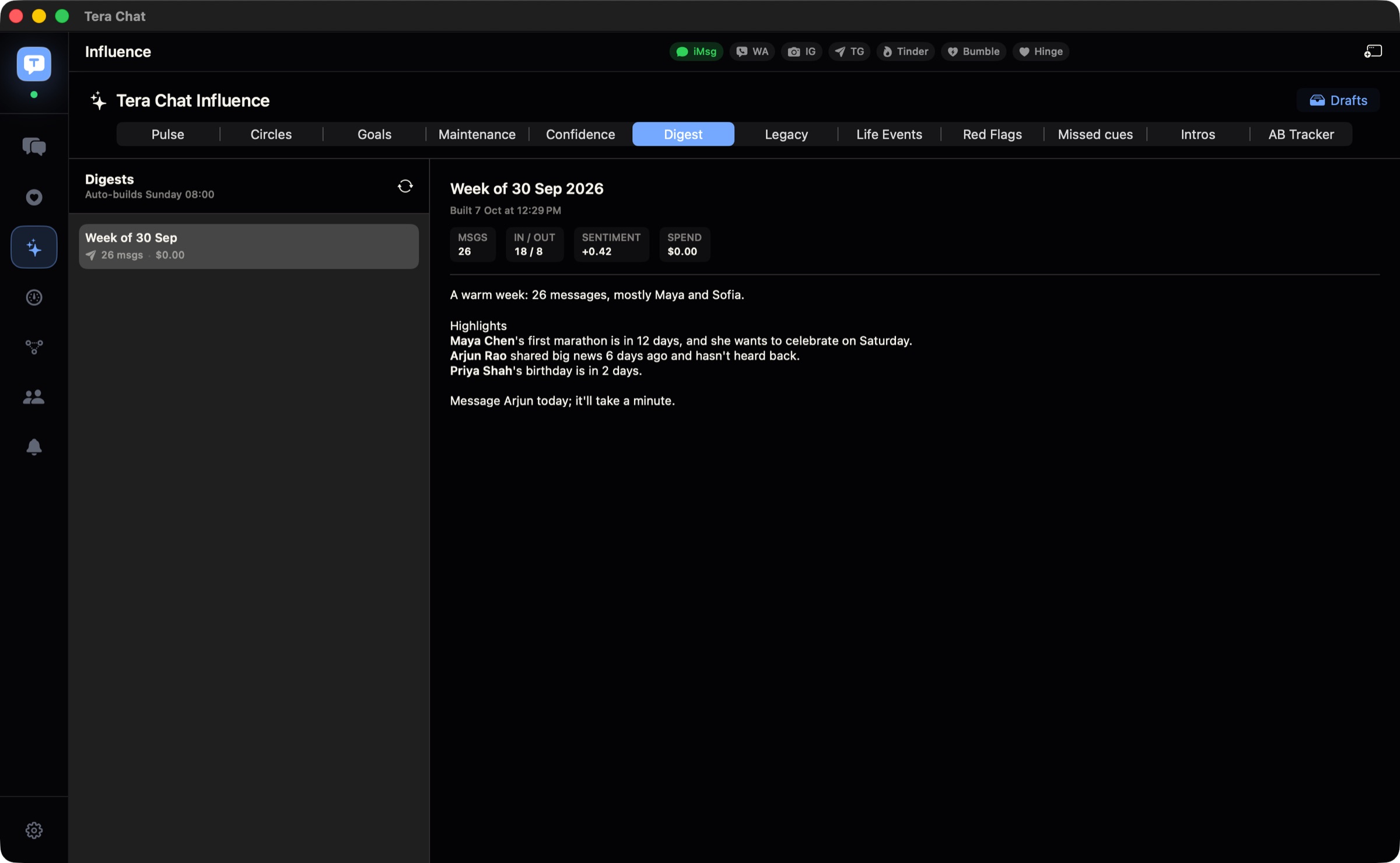
The honest limits: Tera Chat runs only on Macs with Apple silicon and macOS 15 or later, and its connections to WhatsApp, Instagram and Tinder are unofficial. If you’d rather not take that on, steps 1 to 5 work on their own. For every way to bring your apps together, see how to combine WhatsApp, iMessage, Telegram and Instagram on a Mac.
What to do next
Start with step 1 today: list who’s allowed to interrupt you. Then set up the Focus, mute your three loudest group chats, and put three check-ins in your calendar for the next week. If the week goes well, keep it; if someone important slipped through the cracks, add them to your Focus and carry on.
Frequently asked questions
How do I stop all message notifications on my Mac?
Turn on Do Not Disturb in Control Center to silence everything at once. To stop one app for good, open System Settings → Notifications, click the app under Application Notifications and turn off Allow notifications.
How do I mute one conversation in Messages on a Mac?
Select the conversation, click the contact or group icon at the top and turn on Hide Alerts. With a trackpad, you can also swipe left with two fingers on the conversation and click the Hide Alerts button. You'll still be notified when your name is mentioned if that setting is on in Messages → Settings → General.
Is it bad to turn off all notifications?
For most people, yes. In a 2019 field experiment, participants who got no notifications at all reported more anxiety and fear of missing out, while those who got them in three batches a day felt better than the control group.
Why do I have so many messaging apps?
Because your contacts are spread across them. Online adults use an average of 6.75 social platforms a month, according to GWI's Q2 2025 survey, and friends, family and groups each settle on their own app.
Can one app show all my messages on a Mac?
Yes. Unified inbox apps such as Beeper and Tera Chat merge several services into one list. They connect to services like WhatsApp unofficially, so read up on the account risks before you connect anything important.
Published . How we write and check our guides. Spotted something out of date? Email hello@terachat.co.